| Status | ||||
|---|---|---|---|---|
|
Depending on the permissions your user has in the portal, various portal functions will be available to you on the start page. In this example, the user training@fleetboard-logistics.com has full access rights and can therefore use all functionalities provided by the portal. For example, he can create and process orders, define his own workflows, track his linked vehicles on the map, use the arrival monitor for ETA monitoring, etc. You will notice that the home screen is divided into two main areas. The first is the menu bar at the top and the second is the application area, in which you can select the individual portal applications by clicking on the navigation. The different menu and navigation elements are explained below.

| Status | ||||||||
|---|---|---|---|---|---|---|---|---|
|
- By clicking on the habbl logo in the upper left corner you can return to the homepage at any time.
- The menu item "Notification" display message information to a certain user or a group of users. Notifications can be configured in the workflow editor for any status. Messages from a chat with drivers appear in this context too.
The dropdown menu " Switch Portal" contains the same elements that you also find in the tile overview. Since the menu bar is persistent, you can jump to the different applications at any time without returning to the homepage. Following tabs are included by default for habbl contractors:
- Order
- State monitor
- Map
- Reporting
- Administration
- You can use this menu item to log off from the portal or switch the language settings.

| Order |
|---|
This tile takes you to the following applications:
|
| Map |
|---|
| In the map, you can use the transmitted GPS data to see the location and, if necessary, the lane (depending on the user's authorization profile) of your vehicles. |
| Administration |
|---|
You can use this tile to access the following functions:
|
| State monitor |
|---|
| This tile takes you to the state monitor, where you can follow ETA (Estimated Time of Arrival) times during your orders. |
| Reporting |
|---|
| In this section you can generate reports. Please note that only reports explicitly ordered by you are currently available. |
Je nachdem, welche Berechtigungen Ihr Benutzer im Portal besitzt, werden Ihnen auf der Startseite verschiedene Portalfunktionen zur Verfügung stehen. In diesem Beispiel hat der Benutzer schulung@eikona.de vollen Berechtigungsumfang und kann somit sämtliche Funktionalitäten nutzen, die das habblPORTAL zur Verfügung stellt. Er kann beispielsweise Aufträge anlegen und bearbeiten, eigene Workflows definieren, seine verknüpften Fahrzeuge im Ankunftsmonitor tracken, den Ankunftsmonitor für das ETA Monitoring nutzen, etc. Die detaillierte Beschreibung des gesamten Funktionsumfangs finden Sie auf den nachgelagerten Seiten.
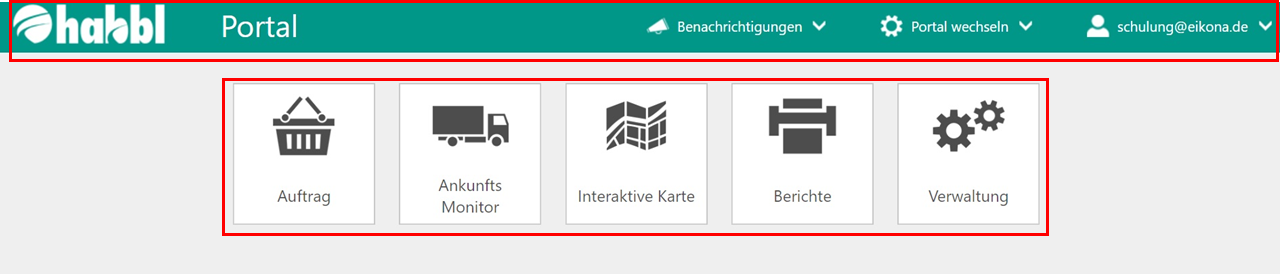
Sie erkennen, dass der Startbildschirm in zwei wesentliche Bereiche unterteilt ist. Zum einen in die Menüleiste, die als Systemfunktionsleiste dient, und zum anderen in den Applikationsbereich, in dem die einzelnen Portalanwendungen über die Kachelnavigation ausgewählt werden können. In der nachfolgend dargestellten Tabelle finden Sie eine Erläuterung der Elemente der Menüleiste und der Kachelsymbole des Applikationsbereichs.
...

...

...

...

...
Der Menüpunkt „Benachrichtigung“ kann zur Anzeige definierter Status-Informationen aus dem System genutzt werden. Benachrichtigungen können Sie im Workflow an einem beliebigen Status konfigurieren, indem Sie zum Beispiel vorgeben, dass bei bestimmten Problemsituationen, wie einem Unfall, der zuständige Portalnutzer oder eine Gruppe von Portalnutzern direkt über das Portal über diese Situation informiert werden.
...
Dieser Menüpunkt kann analog zur Navigation über die Kachelsymbole verwendet werden. Sie können über die Dropdownliste des Menüelements „Portal wechseln“ somit (in Abhängigkeit des Benutzer-Rollenprofils) folgende Bereiche aufrufen:
...
Über diesen Menüpunkt können Sie folgende Bereiche aufrufen und darin die entsprechenden Einstellungen vornehmen:
- Einstellungen (Sprache und Passwort ändern)
- Abmelden
...
...
...
...
...
...
Über diese Kachel gelangen Sie zu folgenden Anwendungen:
...
Über diese Kachel gelangen Sie zu folgenden Funktionalitäten:
...