| Status | ||||
|---|---|---|---|---|
|
To transfer a tour to a device you have to go in the habblPortal to the section Order.
The following screenhots show yout the individual steps.

- Click on the section Order
- In the navigation area click on Tours
- Here you see the current tours
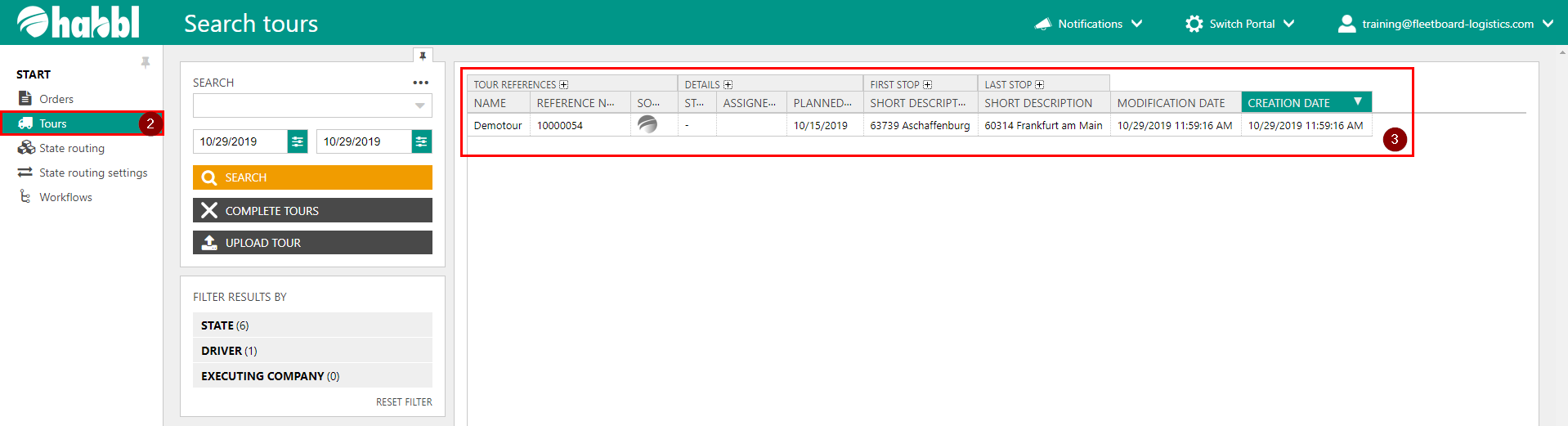
- tours. Click on a tour to get more information and to assign the tour to a device
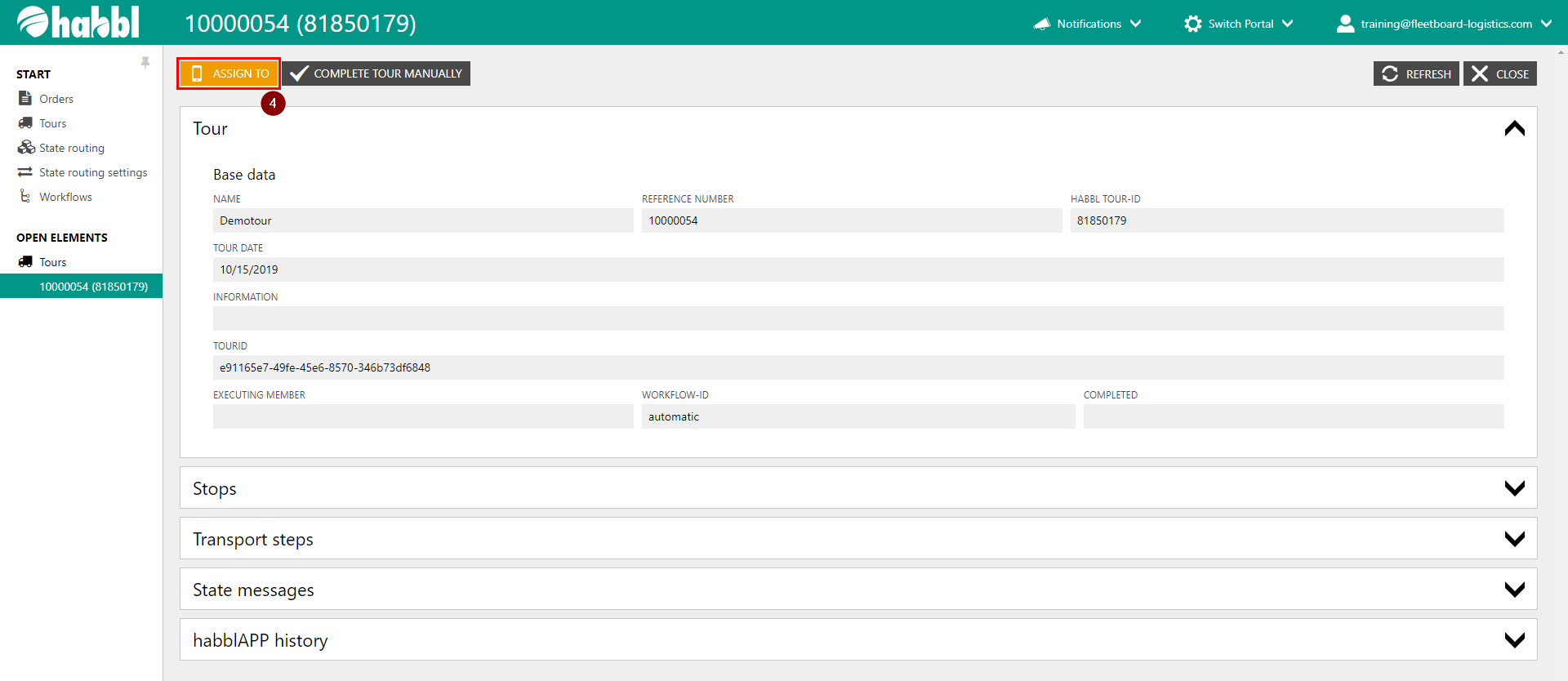
4. Click on ASSIGN TO
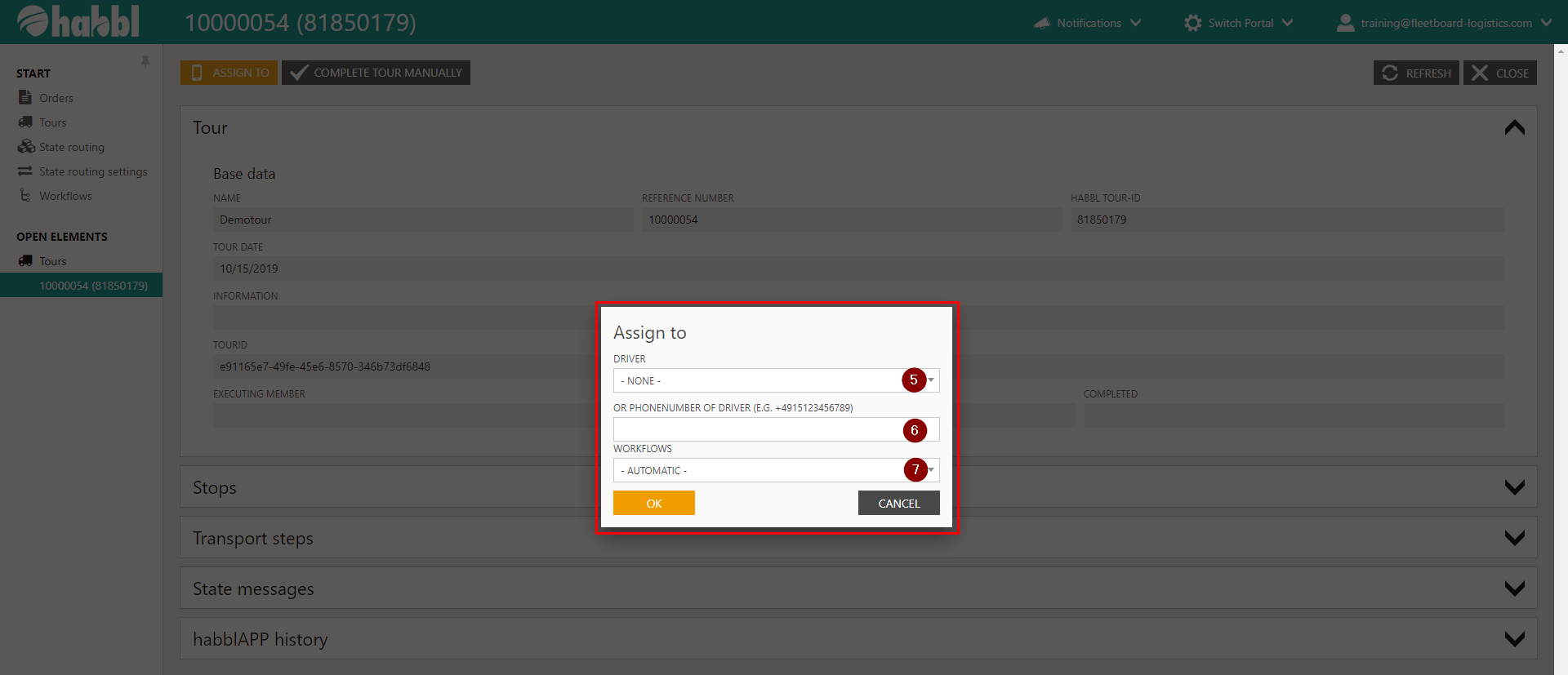
5. Choose a linked driver
6. Or type the Phonenumber of the driver
7. Select a workflow and click ok
| Tipp | ||
|---|---|---|
| ||
|

| Info | ||
|---|---|---|
| ||
|
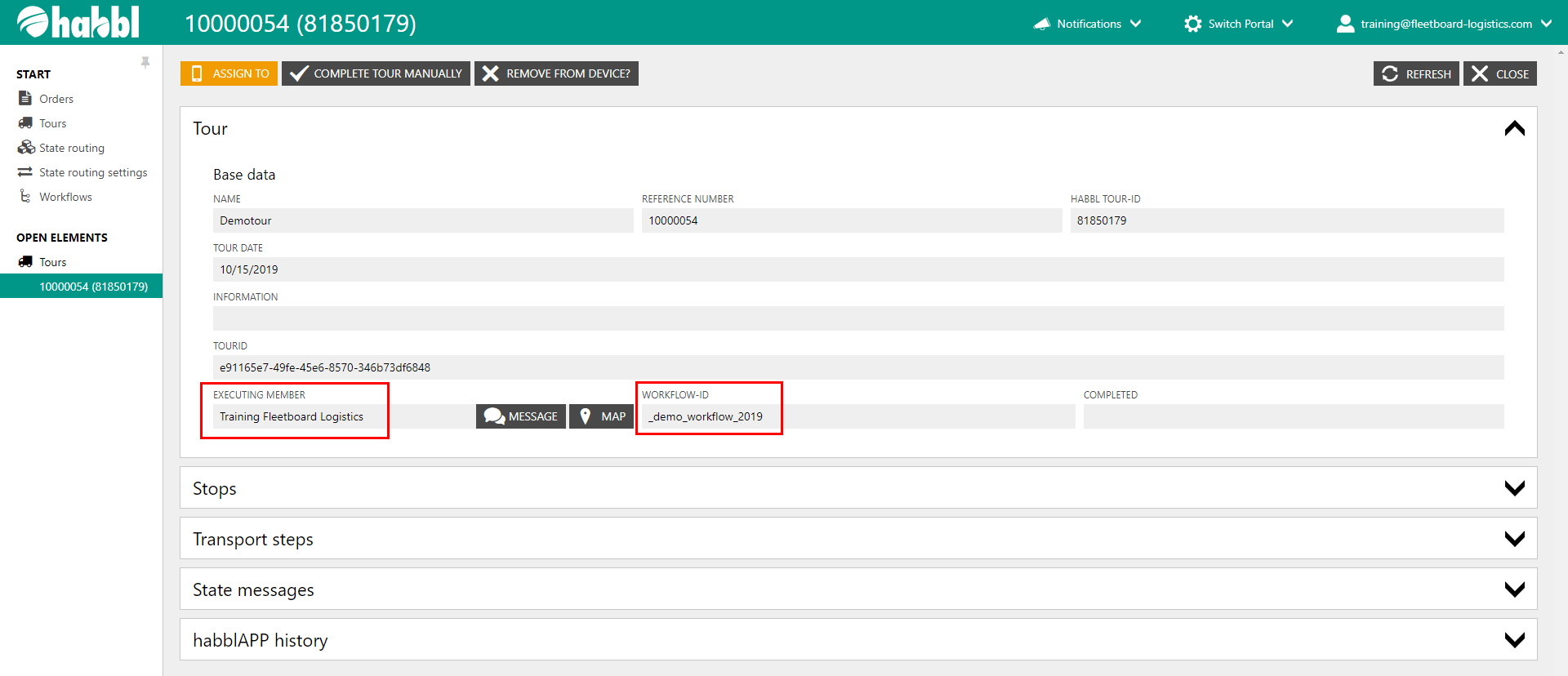
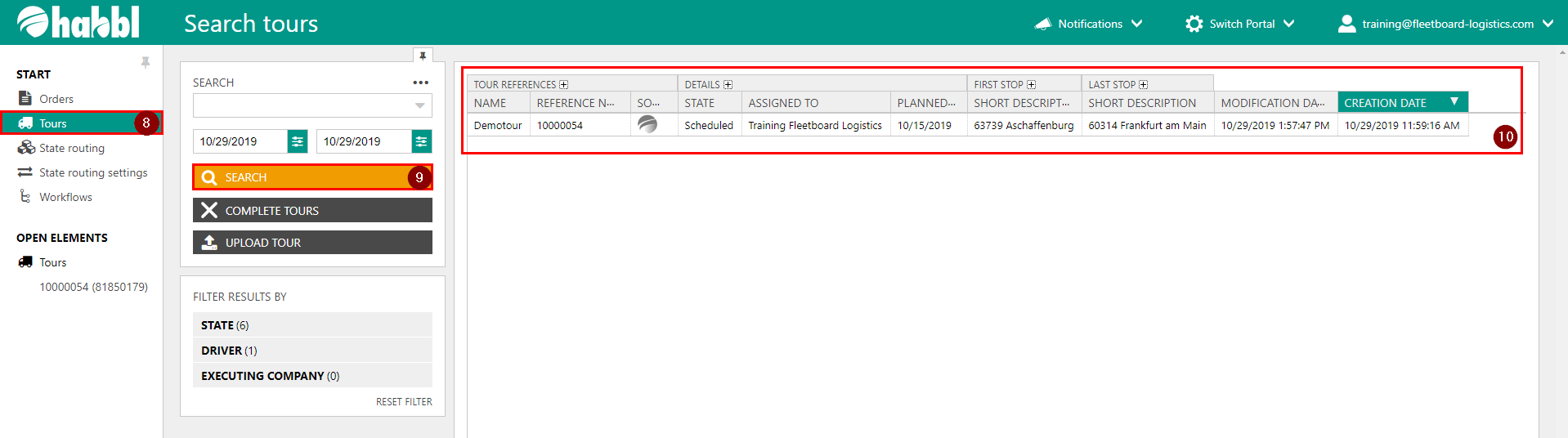
8. If you click on Tours in the navigation area, you get to the overviwe of all tours
9. Click on search to refresh the content of this page
10. Now you can see that the tour is scheduled and assigned to your driver
| Status | ||||
|---|---|---|---|---|
|
| Multimedia | ||||||
|---|---|---|---|---|---|---|
|